Do you have a video file that you’d like to include in your PowerPoint presentation? You can link to a YouTube video or exit your presentation to open up a file somewhere else… or you could embed a video file that’s in the presentation itself!
So if you have video file on hand, here’s how you insert it and get it to automatically play. And you don’t have to bring the separate video file with you.
We’ll start with a blank slide in PowerPoint.

Insert a Video into a Blank Textbox
In a new slide, with a blank text box, you will see icons in the middle of the text box for adding in items like tables, charts, pictures, and videos.
- Insert your cursor in the “Click to add text” box. Click the bottom right icon from the six options in the center. If you hover over this icon, it will say “Insert video”.

2. In the Insert Video window that appears, choose the first option From a file and click Browse.
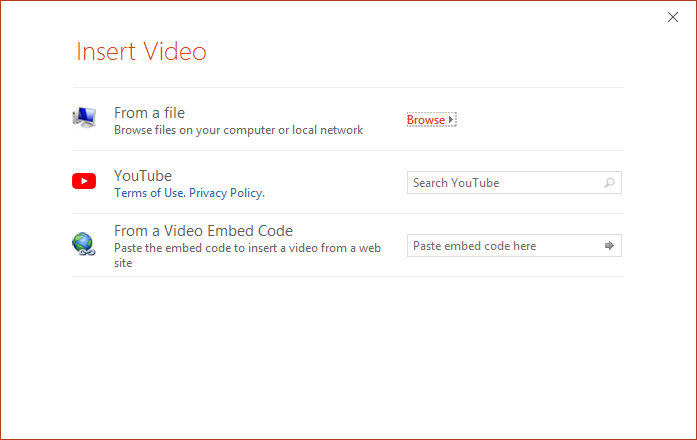
3. Choose your video file. It will insert (this may take a few moments if your file is very large) and then replace your empty text box with a video player

Insert a Video into a Blank Slide
If you do not have a blank text box with insert options, you can still insert a video. Just go to the slide where you want to insert it.
- Go to Insert on the Ribbon toolbar.
- Look for the Media group on the right side and choose Video > Video on My PC.

The video will insert, usually as large as it can to fill the space.
Auto-Play a Video in PowerPoint
If you want your inserted video in PowerPoint to automatically play when you reach the slide, here’s how.
- Click on the video to select it. The Video Tools group will appear on the Ribbon.
- Under Video Tools, choose the Playback
- In the Video Options group, change Start to Automatically

That’s how you insert videos in PowerPoint slides. Inserting and embedding videos is easy, and the Playback options on the Ribbon give you the ability to trim the video, adjust the volume, and loop/rewind.